


Hi - Well, I just reinstalled WITP AE for the umpteenth time since buying it on CD with the paper manual a long time ago. Upgraded computers over the years. As usual, my problems were always with the switches and px and py settings. So here I am trying to get this to work on my latest laptop. I have played around with the px and py numbers and even tried pxf and pyf switches. My last attempt was:
-fd -altFont -SingleCpuOrders -cpu2 -dd_sw -multiaudio -pxf2560 -pyf1600 -deepColor -skipVideo
This was the string I used previously on my last laptop. I was able to go into the Nvidia app and "stretch" my screen to get full screen/no window.
I start the game and the window is black, not full screen and its located off center-upper left.
I'm hoping you can help me figure this out. Was hoping to start a new campaign tonight being that it is Veterans Day and all. Any help is much appreciated.
Thank You,
Bill
a deeper hole...
Moderators: wdolson, MOD_War-in-the-Pacific-Admirals-Edition
Re: a deeper hole...
Intel UHD Graphics is controlling the built-in screen?
You will have to do the scaling with the Intel graphics software.
You will have to do the scaling with the Intel graphics software.
Re: a deeper hole...
Hi Nikel - I have no idea on whether Intel is controlling the screen and if it is, how to even access intel graphics on my laptop...

Re: a deeper hole...
You mentioned Nvidia - if that app is on your desktop you have Nvidia chips for video. Try only using native Nvidia resolutions (offered by the app) and no forcing.If that doesn't work I suspect you are using too high a resolution for the game engine to cope with. Switches can only do so much for 2009 tech.Suribachi wrote: Wed Nov 11, 2026 11:08 pm Hi Nikel - I have no idea on whether Intel is controlling the screen and if it is, how to even access intel graphics on my laptop...
No matter how bad a situation is, you can always make it worse. - Chris Hadfield : An Astronaut's Guide To Life On Earth
Re: a deeper hole...
Suribachi wrote: Wed Nov 11, 2026 11:08 pm Hi Nikel - I have no idea on whether Intel is controlling the screen and if it is, how to even access intel graphics on my laptop...
Post the advanced display settings on your laptop. Should be something similar to this.
- IMG_2178.png (18.68 KiB) Viewed 507 times
Re: a deeper hole...
Thank you very much everyone! I reduced the resolution switches to 800x600 and that worked. It is a bit wonky when starting the game, sometimes it doesn't display the game, only hear the game.Have to go into task manager to quit and restart the game. I'm going to try incrementally increasing the resolution until it doesn't work.
Really appreciate your suggestions!
Is there anyway to soften the colors of the land and also make the water more realistic? I don't remember the land being so bright. I vaguely remember there being a switch for the water? Too many years ago...
Bill
Really appreciate your suggestions!
Is there anyway to soften the colors of the land and also make the water more realistic? I don't remember the land being so bright. I vaguely remember there being a switch for the water? Too many years ago...
Bill
-
Shellshock

- Posts: 579
- Joined: Fri Dec 31, 2010 2:23 pm
- Location: U.S.
Re: a deeper hole...
No switch that I know of. There have been a few nice map mods over the years. But basically the water in them has always been some shade of blue depending on depth.Suribachi wrote: Thu Nov 12, 2026 12:21 am Is there anyway to soften the colors of the land and also make the water more realistic? I don't remember the land being so bright. I vaguely remember there being a switch for the water? Too many years ago...
-
Chris21wen
- Posts: 7940
- Joined: Thu Jan 17, 2002 10:00 am
- Location: Cottesmore, Rutland
Re: a deeper hole...
Suribachi wrote: Thu Nov 12, 2026 12:21 am Thank you very much everyone! I reduced the resolution switches to 800x600 and that worked. It is a bit wonky when starting the game, sometimes it doesn't display the game, only hear the game.Have to go into task manager to quit and restart the game. I'm going to try incrementally increasing the resolution until it doesn't work.
Really appreciate your suggestions!
Is there anyway to soften the colors of the land and also make the water more realistic? I don't remember the land being so bright. I vaguely remember there being a switch for the water? Too many years ago...
Bill
800x600? But what is the native resolution of your laptop screen?
I would get the stock game working properly before trying any mod.
Re: a deeper hole...
I tried other resolutions, seems 1024x768 is the best resolution I can do that is entire screen. 1600x1200 is a window. I was able to stretch the screen on my last laptop's nvidia graphics card, I can't find that option on this card. My latest laptop's native resolution is 2560x1600.
Re: a deeper hole...
In the device manager, which are your display adapters? Example:
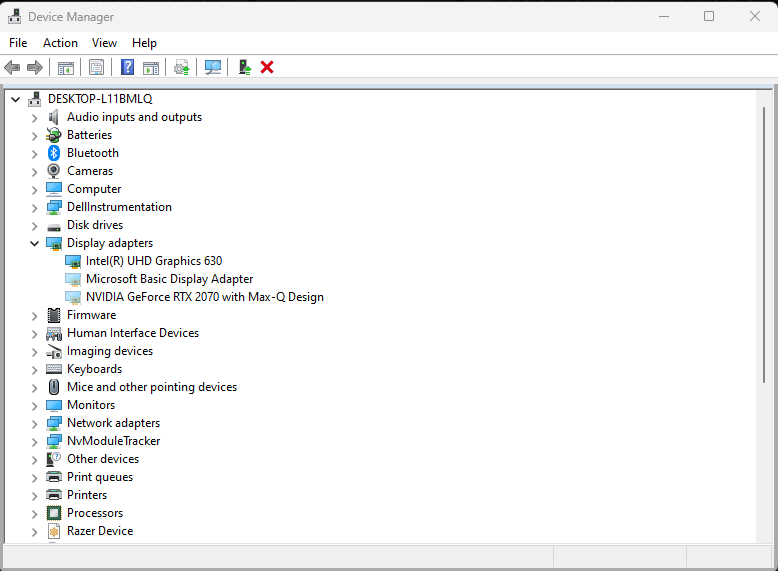
Re: a deeper hole...
intel graphics
nvidia geforce rtx5090 laptop gpu
nvidia geforce rtx5090 laptop gpu
Re: a deeper hole...
OK, then press the Windows Key, type Intel Graphics, and click on Intel® Graphics.
If it does not appear, search for it in the Intel folder.
There should be settings for scaling.
If it does not appear, search for it in the Intel folder.
There should be settings for scaling.
Re: a deeper hole...
Intel's scaling not permitted, directs to the nvidia card.
Re: a deeper hole...
How is that possible, you said nVidia app did not allow it?
These are the settings here in the Intel Graphics app. I can set the game to full screen, but the resolution of the screen is only 1920x1200
These are the settings here in the Intel Graphics app. I can set the game to full screen, but the resolution of the screen is only 1920x1200
- IG.png (10.15 KiB) Viewed 409 times
Re: a deeper hole...
Time for me to give up and just go with 1024x768 before I smash my relatively new laptop. Intel graphics command center will not permit me to modify my scale. I get an error message - "setting is not modifiable through intel graphics for non-intel adapter". I have an intel core ultra 9. Wits end here... Maybe the intel is not setup correctly from factory? Nvidia is the main video app.
Re: a deeper hole...
Forget the Intel adapter - the Nvidia one installed takes over the command of video settings. If Nvidia does not have a scaling menu item, you are probably best with the 1024X 768 which is the native VGA setting that would have been in vogue when the game was released in 2009. Higher setting seem to require a window vs. full-screen.
I moved my Win 10 Windows task bar to the right side of my screen because the game has lots of activity along the bottom of the window (base icons etc.) while the right side is only for off-map bases UK, Canada, ECUSA, Panama Canal zone and Pt. Stanley. Because the window is not full screen it easy for me to click on the desktop or open apps on the Windows Taskbar while in the game. Or you can just use the minimize line button on the top right of every windows screen.
I moved my Win 10 Windows task bar to the right side of my screen because the game has lots of activity along the bottom of the window (base icons etc.) while the right side is only for off-map bases UK, Canada, ECUSA, Panama Canal zone and Pt. Stanley. Because the window is not full screen it easy for me to click on the desktop or open apps on the Windows Taskbar while in the game. Or you can just use the minimize line button on the top right of every windows screen.
No matter how bad a situation is, you can always make it worse. - Chris Hadfield : An Astronaut's Guide To Life On Earth
Re: a deeper hole...
I tried a over a dozen ways to see if I could increase the resolution above 1024x768 and still maintain a full screen. Including changes to my Nvidia and Intel setups. Seems the more I tried the worse my screen size got... to the point where I forgot my original settings with both and I had to mess around even more to get back to 1024x768 and a full screen. What a PITA. So now I am back to full screen and enjoying the game. Hoepfully, I'm not stupid enough to remove the game again when I get bored with it! I wish I could use a better resolution and I know I was able to on my previous laptop. It didn't have all the souped up garbage (armory crate, Intel applications, etc..) that this laptop came with.
The one thing I remember with this laptop when I first got it is that it had two viewing screen options labeled 1 and 2 that you could choose which one to use. I always just used # 1 which I believe was Nvidia controlled graphics? Maybe #2 was Intel controlled graphics? Just guessing at all this. There is no #2 screen option anymore. It did pop up again briefly after installing Intel drivers and software which also provided some additional options but after having to reboot the laptop a couple of times, it dissapeared... No idea. I supposedly have all the latest updates for intel, nvidia, BIOS, etc.. rather than screw up and turn my laptop into a brick, decided to say screw it and play my favorite game of all time at 1024x768.
Thanks again everyone for trying to help me out, providing ideas, thoughts and links to similar issue corrective actions. Much appreciated!
Bill
Re: a deeper hole...
Right click on the exe, properties, compatibility tab.
Change high DPI settings. There are options for the scaling. Did you try them?
Change high DPI settings. There are options for the scaling. Did you try them?